We remain fully operational. Our teams are working around the clock to ensure your deliveries continue safely.

Descargar la aplicación


Servicios al cliente
Sobre nosotros
Copyright © 2025 Desertcart Holdings Limited
Descargar la aplicación


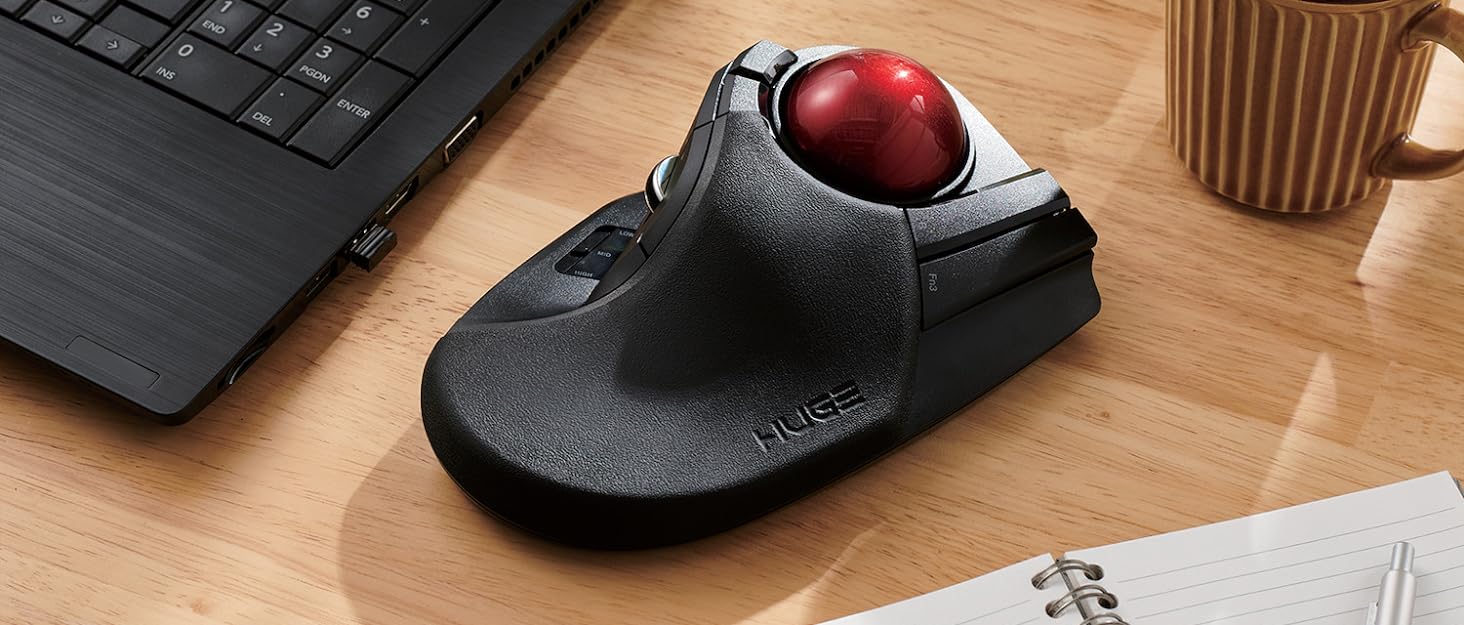
🎯 Master your workspace with ELECOM HUGE — where precision meets power!
The ELECOM HUGE Trackball Mouse features a large 52mm red ball for ultra-precise cursor control, 8 customizable buttons including scroll wheel tilt, and adjustable DPI settings (500/1000/1500) for tailored speed. Its 2.4GHz wireless connection with battery indicator ensures uninterrupted workflow, while the ergonomic palm rest and durable artificial ruby bearings provide comfort and longevity. Compatible with Windows and macOS, this award-winning Japanese-designed device is engineered for professionals seeking superior accuracy and customizable efficiency.





| ASIN | B0735584RM |
| Are Batteries Included | Yes |
| Batteries | 1 AAA batteries required. (included) |
| Best Sellers Rank | 5,082 in Computers & Accessories ( See Top 100 in Computers & Accessories ) 4 in Trackballs |
| Brand | ELECOM |
| Colour | Black |
| Computer Memory Type | VRAM |
| Customer Reviews | 4.2 4.2 out of 5 stars (7,187) |
| Date First Available | 16 July 2017 |
| Guaranteed software updates until | unknown |
| Hardware Platform | Laptop, PC |
| Item Weight | 259 g |
| Item model number | M-HT1DRBK |
| Lithium Battery Packaging | Batteries packed with equipment |
| Manufacturer | ELECOM |
| Operating System | Windows 10, Windows 7, Windows 8.1, Windows XP, macOS 10.12 Sierra |
| Power Source | Battery Powered |
| Product Dimensions | 5.72 x 11.48 x 18.19 cm; 258.55 g |
| Series | M-HT1DRBK |
| Voltage | 1.5 Volts |
A**E
Elecom M-HT1DRBK “HUGE” — creamy-smooth, ultra-customisable multifunction ergonomic trackball
Don’t be put off by the reviews on this page, which at first sight are horrifying news for anyone considering buying the Elecom M-HT1DRBK “HUGE” wireless trackball. A third of the purchasers found it unsatisfactory or barely good enough (up to three stars). There clearly is or was once a quality control problem with the artificial ruby bearings for the trackball. On the other hand, two thirds of the buyers are extremely satisfied or even ecstatic, and there is no problem returning an item to Amazon. Besides, the cure for the bearing problem is known, cheap, safe and quick, a ten minute job with a screwdriver and instructions freely available on YouTube. In addition, the choice of solid large, multifunctional trackball mice is basically this Elecom or its sister, the Elecom EX-G Pro, which is built with the same upmarket components, including the ruby bearings. I decided to take the small risk. My Elecom HUGE is one of the good ones (or later ones, if it was a batch problem, now solved), with a creamy-smooth action on the trackball, feather light switches, one heavier switch just where I want it, and a slight stiction on the scroll-wheel which adds to the precision. You’ll see I gave five stars, so count me among the happy customers. If a finer grading were available, my rating would be 4-3/4 stars because one of the switches is too light for it to be ergonomic in that position — for me. Also, the mostly plain black styling with just the big metallic red trackball (diameter 52mm!) and a smidgin of chrome on the scroll-wheel, while intricate and extravagantly curved, in the eyes of an artist like me should have been further relieved of its blackness. So the quarter-star deduction is for personal ergonomic preferences and to mark an overdose of Japanese “professional” styling, a.k.a. too much bloody matt black, not fundamental faults. Obviously, I consider the Elecom HUGE good value for money; the nearest comparable Kensington costs twice as much and offers less. The HUGE is solidly built and feels like quality in the hand. I wonder, however, whether the self-skinned soft polypad which adds so much to the comfort of operating the HUGE will last the decade or more of hard use the rest of the trackball seems good for. (If the memory foam skin does wear while the trackball survives, I’ll glue on tan leather cut to shape.) The ergonomics are excellent, with large, huge and massive buttons, and would suit a hand of any size, including very large hands. The hand is spread across the big expanse of the aptly-named HUGE, with the thumb operating three of the buttons plus the four-function scroll wheel, including yet another button function, which I instantly allocated to the left click because it is heavier and louder than the other switches, in the instance of the left click a very good thing. An ergonomic error — for me anyway — was making one of the assignable buttons, the piano key under my little finger, as light as the others. The little finger is just not as controllable as the other fingers. In fairness, it must be said that the designer apparently intended the ring finger to operate this button, with the little finger being unallocated. I therefore assigned no function to this button. As a result I control the ball with my two middle fingers, which is another big win in precision, especially since the HUGE offers three resolutions (500, 1000, 1500dpi) selectable on-the-fly with a slider button under the thumb, so that you can make pixel-perfect adjustments on any size of screen, useful in making fine art or graphic design, indispensable in engineering work, and even in typing or editing when the cursor needs to be placed precisely but quickly every few seconds. I’ve also reassigned the default left-click thumb button to the Mac’s COMMAND modifier key (the propeller) because it is too easy to press such a large, responsive switch and get unwanted results if a direct action is assigned to it. This trackball is so customisable and feature-rich, it reminds me of nothing so much as a puppy eager to please. A word about the control assignment software: The earlier software has been rewritten and repackaged, including into English, and is now excellent, regardless of what you may read in the reviews here. It is easy to make the basic button assignments, and you can even use the trackball for gestures, similar to gestures on Apple’s Magic Mouse or Magic Trackpad. Counting the scroll-wheel’s click and tilt functions as buttons, there are ten buttons, which with the variations and the gesture programmer give no fewer than 160 possible functions. It is well worth spending some time reading the help files for the function allocation software accessible through the software dialogue box. For those with much more intricate needs (games players, perhaps?) I’ve also tested the HUGE with USB-Overdrive aftermarket peripheral management software (free with advertising, $20 without), which is potentially more powerful than Elecom’s free software, but only if you know what you’re doing. On the whole, I think most buyers of the HUGE will find Elecom’s layman-friendly software serves them well. So who is the Elecom M-HT1DRBK “HUGE” wireless trackball recommended for? I’m a writer, an editor, a typographer, an industrial designer, and a painter both in traditional media and digitally. In each of those avocations by itself Elecom’s HUGE would be worth the money and considerably more to me, so for each of them the trackball adds far more convenience than the trivial cost per job. Music and video editing, which I occasionally do, also uses the same facilities and speedy precision. The question isn’t really whether the HUGE is great value for money, but whether each individual buyer would get on better with the HUGE layout of the trackball on top and the scroll-wheel at the side, or with the reverse layout of the sister EX-G PRO, which has the scroll-wheel on top and the trackball at the side, which when you change over to the trackball is a straight transition from the common Microsoft-style mice with a consequent shorter learning curve. Personally, I think the trackball on top with the scroll-wheel on the side, as in the HUGE, offers the best ergonomics — and the learning curve was anyway pretty short. The Elecom M-HT1DRBK “HUGE” is definitely recommended.
S**R
A seriously good trackball mouse 👍
I do not normally do reviews, but for this item it is different, so please excuse the essay.. I previously used, quite happily for a number of years a trackball moise that was "thumb driven". I was very happy with it until it decided to expire a few weeks ago. Having seen that there were now index finger driven trackball mice, i thought this is a good idea, may also be more accurate as well. I did my research, and purchased highly recommended and reviewed mouse from a competing manufacturer, and after a couple of days returned it as it was huge, and I mean "huge", and button placement for left and right mouse buttons was not great. So, did some more reseach and came across the Deft Pro from Elecom. All the reviews i saw said great mouse but bad instructions, so i thought how bad can they be? and ordered one. The box arrived next day, Iook the mouse out, looked at the manual and saw it was in Japanese. I also noticed a very small slip of paper tucked in the box, in English advising go to Elecom's website to download the manual in pdf format in English, as well as other languages. I did so, read the manual and the setup was nice and easy, with no additional drivers needed, unless you need to use the additional software, which I do not need at present. So, mouse connected to laptop, and on use found left and right button placement is near perfect. Scrolling the ball is precise and tight, also is very smooth. Would i buy one again? Hopefully the build quality, which feels lightweight but sturdy, will last a few years, so at the time I may need to replace it, I would definately purchase it again. A quick note to the Manufacturer..... Please add a non Japanese manual in the box or a larger note in other languages advising where the instructions can be found, which is the only reason this is a 4 star review and not a 5 star review. I look forward to (hopefully) using this for many years to come.
J**S
Brilliant!
I have used several wireless trackball devices over the years, in search of one that ticks all the boxes for me and this is by far the best one I've used. I love it. It is actually massive, so the embossed 'HUGE' is very apt! My hands are big and it's perfect for me. Extremely comfortable, and the default button functions are great. I haven't tried the app to assign the f buttons and don't think I need to, but good to know the option is there if I need it or want to try a different layout. Only improvements would be to make it a rechargeable device, but I'm being picky! Highly recommended!
M**R
Love this mouse, when it works
(Edited: they finally responded, but I didn’t see their messages till a month or two later. They had withdrew their help to resolve this. Nice. And here I was considering purchasing it again.) This is the perfect mouse when it works. The trackball allowed me to game and move much faster and without the need to pick up the mouse. They are easy to use and perfect for people with large hands. I cannot say enough about how I like the mouse. Unfortunately, I have had three of these break within months of purchasing them. They seemed to have fixed the dodgy bearing issue as the last one was much better and I found I didn't have to replace the bearings. I would happily repurchase it again if I knew it wasn't going to break within 2-4 months of use which is outside of the limited warranty. Directly contacting the manufacturer is a joke they won't respond. I cannot recommend anyone purchase it till they fix the longevity of their product.
お**ん
ケース自体は大きめですが、持ち運びの時の安心感が段違い!さすが専用品ですね、とても満足しております。
N**M
Quick Summary: MSTE users who don't have an MSTE - get this mouse as it's the closest "replacement" to date. Obviously, if one wants a mouse like the MSTE, then get an MSTE. But even a used MSTE costs a bit and you have to be careful of the cord. If one wants something Less Expensive that closely resembles the MSTE and is also cordless, then this is the best mouse on the scene since the MSTE itself. Update2: Trying to add some slightly better pictures and others that show the MS Trackball Explorer, Logitech Cordless Optical Trackmall, and the smaller Elecom "DEFT" trackball mouse. But some pictures are not loading to the site. Sorry. :( Update1: IMPORTANT NOTE: Waaay down in the comments (the oldest one at the "bottom" should be a link to the Elecom software download page and the English PDF manual. As this mouse is "very new" you *DO* need a more recent Elecom proprietary software to recognize this mouse if you wish to use it's three proprietary function buttons (F1-F3). Long Winded Review =============== This new Elecom Fingerball wireless mouse - the M-HT1DRBK - appears to have been released is June 2017 and has been available on Amazon since July 2017. In August I was about to order a second of the smaller Elecom M-DT2DRBKs when I stumbled over this new **larger** "HUGE" mouse and figured it was worth a try. The M-HT1DRBK just arrived and after giving it a ten minute test spin I just ordered two more. No clue if it will take "1-2 months" for the next batch to arrive, or if the price will drop from $85.99, but would say it is certainly worth the investment. FYI: It actually does say "HUGE" on the mouse itself. :) Comparisons to the MSTE (MS Trackball Explorer) ====================================== 1) It has a nice large "red ball" like a certain MSTE we all know and love. In fact, the Elecom ball is slightly BIGGER than the MS one. There were many reviews about the smaller Elecom mouse's "grey ball" having issues, and several people purchased a "blue" M570 ball to swap with the "grey" one. From my quick tryout of this new mouse with it's "red ball", would say that the quality looks to be significantly better than that of the smaller mouse's "grey" one. An excellent improvement. 2) This mouse is *MUCH LARGER* than the smaller "grey ball" M-DT2DRBK. Excellent for people with "larger" (aka normal sized) hands. 3) It is a bit wider than the MSTE, and Elecom moved one of the three proprietary "Function Buttons" to the right side of the ball. If you use their proprietary software, this would give you "two buttons to the right of the ball" just like the MSTE. 4) MOST IMPORTANT OF ALL. This mouse has a PALM REST. As this seems to be an alien concept to most mouse manufacturers I will state it again - this mouse actually has a place for the palm of one's hand to "rest" while using the mouse, so for the first time since the MSTE, there is actually a trackball that not only fit's one's hand, it is actually COMFORTABLE. Plus it doesn't have teeny tiny thumb-killing buttons like a certain L*git*ch Trackman. Wish I could show a decent side-view of the palm rest, but this can also be seen with via the pics on Elecom's web site. 5) ??? I would assume that being a wireless device, there may be an occasional "lag" in response times, but cannot say for certain. However there does appear to be a wired version of this mouse as well. It's part number (August 2017) is M-HT1URBK. Usage ===== Bulk of this review was written after only ten minutes of mouse use, so haven't had the time to give it an extended run, but observations so far are positive. "Weeks later" - Still great. Haven't tried the Elecom software yet myself (not using the F1-F3 buttons). - Seems to respond MUCH better than the smaller Elecom version (blue or grey ball). - Range seems to be about the same as the smaller one. About nine feet out it gets tricky and Line of Sight is critical. - The "left" button isn't as "tall" as the MSTE's, so my clumsy thumb is hitting the wheel, but this should be a minor issue. - ??? I read elsewhere that the "left" and "right" mouse buttons are "better quality" than the other buttons, that one should be able to tell the difference, that they should have made *all" the buttons "better quality", etc. Haven't noticed any difference between buttons yet. Too busy enjoying having a wireless mouse that actually fits the shape of my hand for a change. Customization - aka The Buttons ======================== So far as remapping buttons, "drivers", and support for various operating systems... Would assume this mouse works as a basic mouse in anything from XP up to Win10. You've got your Left, Right, Forward, Back and Wheel Buttons, plus the three Extra Proprietary Function Buttons F1-F3. Remapping the eight buttons and basic customization is where it gets interesting. Would assume one needs at least version 5.1.0 of Elecom's proprietary software to use/control all eight buttons. For now I am sticking with X-Mouse Button Control which allows configuration of everything except the three extra Function Buttons. Both programs allow for the use of multiple profiles for easy customization across different applications. Elecom's software (and English PDF manual) is available from their website. I will try adding possible links as a "comment" later as this review is too long as it is. Odd Future Issue (?) ================ Since the palm-rest is made of a "soft" material vs plastic, I wonder how it might hold up over time. Will it wear out? Time will tell.
N**O
Assolutamente in mio Trackball preferito. È stato necessario sostituire i cuscinetti in rubino, davvero poco scorrevoli, con cuscinetti in ceramica G5 da 2,5mm ed inserire degli spessori nella culla della sfera per permettere ai cuscinetti di roteare, per avere un movimento fluido e senza striction. Ovviamente serve un minimo di manualità, e la consapevolezza che cosi facendo si perde la garanzia (a me sembra un prodotto molto resistente, e sicuramente con un costo non eccessivo, quindi ne vale la pena), ma adesso è il TOP! Software molto personalizzabile; Forma ampia e comoda (ma questo può variare da mano a mano); Tanti pulsanti personalizzabili e ben raggiungibili; Scroll verticale preciso e con tilt scroll (quello orizzontale); Diversi livelli di DPI; Due livelli di precisione (immagino sia la potenza del segnare radio) io lo tengo al massimo e la batteria dura parecchio. Insomma, davvero soddisfatto. P.S. Evitate i trackball con sfera per il pollice, la scorrevolezza non dura da Natale a S.Stefano!
S**M
User friendly
A**A
Very durable and convenient to transport my trackball everywhere I go since I started using it I feel uncomfortable using a normal mouse..
Trustpilot
Hace 2 días
Hace 2 semanas