🔐 Unlock the future of secure, lightning-fast PC access—no passwords needed!
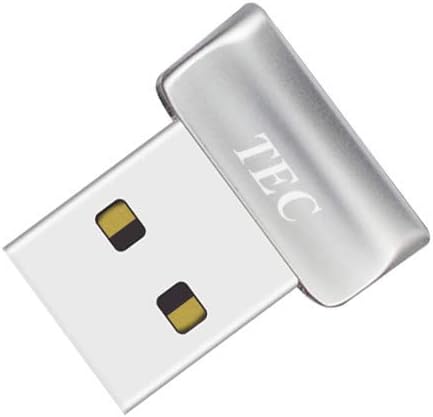
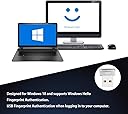
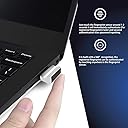
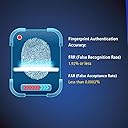
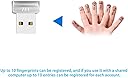
The TEC Mini USB Fingerprint Reader TE-FPA2 is a compact biometric security dongle designed for Windows 10 and 11. Featuring 360° fingerprint recognition and ultra-fast authentication within 1-2 seconds, it supports Windows Hello for password-free login and file encryption. With the ability to register up to 10 fingerprints per account, it offers personalized and shared security. Its low false acceptance rate (<0.0002%) ensures top-tier protection, while its plug-and-play USB design makes it portable and easy to use. Ideal for professionals seeking seamless, high-security access on the go.
| ASIN | B08DCFMSLG |
| Best Sellers Rank | #10 in Security & Surveillance Biometrics |
| Brand | TEC |
| Customer Reviews | 4.3 4.3 out of 5 stars (812) |
| Date First Available | July 28, 2020 |
| Item Dimensions LxWxH | 6.69 x 8.13 x 4.72 inches |
| Item Weight | 0.176 ounces |
| Item model number | TE-FPA2 |
| Manufacturer | TEC |
| Product Dimensions | 6.69 x 8.13 x 4.72 inches |
| Series | TE-FPA2 |
S**T
Works Great with Windows 11 25H2
I love this device! I don't know how I've gone so long without one. Installation on Windows 11 25H2 is quite easy! Here's how. * Plug in the TEC fingerprint reader and Windows plug-and-play quickly recognizes it and installs the driver. * Go to Settings -> Accounts -> Sign-in Options and under "Fingerprint recognition (Windows Hello)" you should see "Sign in with your fingerprint scanner (Recommended)". If it says "This option is currently unavailable", check Device Manager to see if the Biometric Devices -> ELAN WBF Fingerprint Sensor is there without a warning icon. * Open "Fingerprint recognition (Windows Hello)" and click the Set up button to register a finger to get you started. You can add registration of more fingers later if you like. * Lock screen, or sign out. * Simply put the registered finger on the fingerprint reader. Boom, you're logged in instantly! * If you're installing on a laptop or desktop that goes to sleep (my desktop isn't configured to go to sleep, so I didn't bother with this), you'll find that Windows may choose to turn off power to the fingerprint reader at times. You should change that behavior in Device Manager. Open Biometric Devices -> ELAN WBF Fingerprint Sensor properties, and on the Power Management tab uncheck "allow the computer to turn off this device to save power". Warning: Don't expect fingerprint to show as a sign-in option on the Lock or Login screens! Microsoft apparently chose to not show fingerprint as an option once "Fingerprint recognition" is enabled. Just go ahead and use the fingerprint reader. This behavior had me confused for quite a while, as I wrongly thought its absence on the Lock or Login screens sign-in option meant the fingerprint reader wasn't available. Note: In Windows 11 Microsoft got rid of the "Sign in with an external camera or fingerprint reader" Sign-in Option so there's no need to turn that option on as it's just enabled automatically. Some reviewers who installed on Windows 10 state that you must turn that option on, but don't worry because you can't find it any more.
S**E
It takes a little finess, but it works great!
So depending on your Windows version this sensor may or may not be plug-and-play. BUT, there is a way to make it work amd it's not hard to do so. I'll leave pictures to show the steps. There are two things that need to be done in order for it to work with Windows Home/Pro 24H2. 1. You have to shut off power management to the device. Not a big deal as the device uses very little power to begin with and is only needing said power when it's looking for your fingerprint. Otherwise it's just as dormant as your keyboard with use. 2. You have to enable the use of external sign-in options in windows. Because it's not integrated and therefore considered a third-party device to the system Windows enhanced sign-on doesn't recognize it as a Windows Hello device. By enabling the use of external sign-on devices you enable the use of devices like this. Mind you you will have to have a pin to enable the device and store fingerprints. Go down to the start button and RIGHT-click it. Go to Device Manager Open Biometric Devices RIGHT-click ELAN WBF Fingerprint Sensor LEFT-click Properties LEFT-click Power Management Uncheck the box that says "allow the computer to turn off this device to save power" LEFT-click Okay Again, RIGHT-click the Start Button and select Settings. LEFT-click Accounts LEFT-click Sign-in options LEFT-click Sign in with an external camera or fingerprint reader to turn it on Restart the computer Now you can enjoy this great reader. It is fast and accurate and is a great addition to any Windows Hello setup!
H**R
Low profile, accurate. Easy to install, small footprint.
Low profile and great accuracy/consistency. I have an LG Gram Pro 16 inch laptop. The one short fall of this laptop is no fingerprint scanner. It does use fascial recognition, but I prefer to keep my cameras off. The installation was easy and straightforward. I told Windows 11 to use "Hello" and then it installed after a reboot. It scanned and stored my fingerprint without any issue. It has worked flawlessly over the past week and has never failed to allow a login on the first use. It is very low profile. It is barely noticeable. Of interest, the Gram Pro is the same thickness as the amount the scanner protrudes from the USB port. So, when the computer is open, the scanner and the laptop are equally contacting the table surface.
K**.
It works well, needed a minor modification after a few months of use.
First, let's talk functionality and I'll make this brief. On a Windows 10+ PC, I was able to use this effortlessly with Windows Hello and integrated with BitWarden / any other password-needing app that supports Hello. The drivers that Windows installed worked right out of the box. It's no fuss, and I have a perfectly placed USB port on my Logitech (brand dropping like an influencer here .. jk) keyboard, which was especially nice since Logitech makes these USB2.0 ports as I'm sure some middle management executive calculated this would save them a few cents per unit -- anyways, so they're not useful for most other modern things that need speed. And now we get to the issue. I'm not sure if it's from the construction tolerances of the USB jack / reader or if it's just because it's built directly into the USB device, which can put some stress on the port as you interact with it overtime. After about 3 months, I noticed mine started to not unlock and had infrequent fails -- I used the fingerprint enrollment wizard to test and noticed it was dropping connection. No problem, Bobby BigBrain MacGyver is at it .. I cut a solo cup and slipped it underneath the bottom side (forcing the connector up), then slipped the fingerprint reader back in and bam .. issues resolved. So if you're having this occur after a bit of time, give that a try. Screenshots attached.
4**5
指紋認証リーダー非搭載のWindows11搭載ノートパソコンでWindows Helloの認証を行うために購入。 問題なく認証/ログインができています。満足です。 ドライバー等も特に手動インストール無しでUSBに挿しただけで大丈夫でした。 製品パッケージの裏面にWindows11/10対応と記載があります。
T**Y
Tried Microsoft/Dell drivers, none of them worked with this fingerprint reader...
A**Z
El vendedor no hizo la tramitacion del IVA y me ha tocado pagar 5,92€ al cartero. Por otra parte el lector funfiona bien y Windows 11 lo reconoce sin ncesidad de instalar ningun driver.
B**M
Doet het niet op Windows 10 en ook niet op W11. Gedownloade drivers (van de originele site) werken ook niet. Zonde van het geld en de moeite.
D**N
Great product. Seems to be a decent fingerprint reader for the price. So far, is working perfectly fine with registered fingerprints on Windows 11 using Windows Hello. Quite happy with the quality. Installation was extremely simple on Windows 11 (USB device detected immediatly. Driver installed automatically).
Trustpilot
1 day ago
2 months ago