🎨 Elevate your digital art game — don’t just create, captivate!
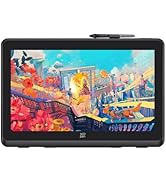
The XPPen Artist 22 2nd is a professional-grade 21.5-inch pen display tablet featuring a vibrant 122% sRGB color gamut, 8192 levels of pressure sensitivity with tilt support, and a full HD 1920x1080 resolution. Designed for artists, illustrators, and remote professionals, it offers seamless USB-C connectivity, an adjustable ergonomic stand, and broad compatibility across Windows, Mac, and Linux platforms. This battery-free stylus tablet delivers precise, natural drawing experiences ideal for digital art, online teaching, and creative workflows.


| ASIN | B08X46P868 |
| Active Surface Area | 476.064 x 267.786mm |
| Additional Features | Drawing/learning/working |
| Best Sellers Rank | #98 in Computer Graphics Tablets |
| Brand | XP-Pen |
| Built-In Media | 1 x 21.5” Graphics Display, 1 x Black Drawing Glove, 1 x PA6 Battery-free Stylus,1 x Pen Holder (comes with 8 pen nibs), 1 x Quick Guide,1 x Cleaning Cloth, 1 x USB-A to USB-C Cable,1 x HDMI Cable,1 x Power Adapter,1 x USB-C to USB-C Cable,1 x Power Cord |
| Compatible Devices | Linux, Mac OS X 10.10 (and higher), Windows 7 and above |
| Connectivity Technology | HDMI , USB |
| Customer Reviews | 4.6 out of 5 stars 1,622 Reviews |
| Display Type | LCD |
| Item Dimensions L x W | 13.07"L x 21.18"W |
| Item Height | 16.5 inches |
| Manufacturer | XP-PEN |
| Model Name | ArtistCD220F_US |
| Model Number | ArtistCD220F_US |
| Native Resolution | 1920x1080 |
| Operating System | Windows 7 and above, Mac OS X 10.10 (and higher), and Linux |
| Pressure Sensitivity | 8192 Levels |
| Screen Size | 21.5 Inches |
| Special Feature | Drawing/learning/working |
| Specific Uses For Product | Online Teaching/E-Learning/Remote working/Digital drawing/Web-conference |
| Target Audience | Artist, Illustator, Student, Teacher |
C**N
A Great Buy and Nice Product
I have been using this since I had received it. The set up was not at all as difficult than imagined, other than I had to switch the video cables between my original monitor and the graphic display monitor. I did not even need to delete the WinTab32.dll which someone had mentioned doing. Works fine with a number of Open Source Paint programs like MyPaint, Gimp, Krita and Inkscape. It, also, works well with paid for programs like Paint Shop Pro, PD Howler, JugiPaint, and Art Rage Studio. I figure I would have to shell over $650 bucks to Wacom for one of their smaller and least expensive Cirque pads. But, after shopping around Amazon and other places, the XP-Pen Graphics Display Monitor at over 21" was a way better price for a couple hundred bucks less. The Wacom Cirque at the same size is about $1,700. As far as portability goes ... I would say that it is not that portable. It's a lot heavier than you would think, like an older flat LED monitor would be when they first came out at that size. So, it's better to be set up in your art studio, den, bedroom or wherever you do your digital art. Carrying it around with you and your lap top would become very cumbersome. I definitely recommend this product for anyone artist, hobbyist or even student who want a good size graphics display monitor without breaking his budget or trying to win the Lottery. The one thing I would caution is that, since this device IS a TV/PC monitor; It is best that you, also, buy visors that protect your eyes from the high frequency blue light, UV rays and other light particles that is emitted from the monitor that could harm your eye sight. Gunnar produces such glasses. If other companies, check them out. Best to protect your eyes as much as possible.
C**A
Impressive!
Off and on through out my years of using Huion, Wacom, and now XPpen. I have to say, I'm super impressed with XPpen! I recently bought a wacom one. Quickly regretted it. I had returned it. It's response time was horrible, and wasn't worth $300. I was about to buy a huion again (had one many years ago) and saw reviews that within 3 years, the display would stop working. Then I found x pen, and this model. The reviews seemed amazing but I didn't get to hopeful. However, I'm glad I bought this! It's response time is amazing. Easy to use. The size of the screen is perfect and the colors are beautiful. The pens are super comfortable to use. It came with a handful of nibs, and two pens that I flip between. I'm still getting used to the keypad as I never used one until I bought this. Software installation was easy! Wacom was a nightmare. Overall, I'm very happy with my purchase of this display. The price, seems fair. I bought it while on sale for black Friday. As a graphic editor, I appreciate this display and will stick with XPpen from now on. So long as they keep making quality products, I'll keep coming back to buy from them.
B**N
Amazing! (first time art tablet owner)
After never owning a single pen tablet device like this i really wanted one but was not prepared to pay the Wacom prices. especially for amateur hobby work that i do for fun. I was skeptical about the quality since the features promised are on par with that of a 1000 dollar wacom device. After getting this device i was astounded. Everything from the quality of the material to the responsiveness of the tablet and pen were amazing. The pressure is awesome and the shortcuts were all customizable to whatever key combinations i wanted to use. This sped up my workflow 10 fold. the pen itself is nice quality and has a decent weight to it. Its a little lighter that it could be but i dont know how much heavier i would want it for those moments when it slips out of your hand and hits the screen you wouldnt want it to leave a mark on the screen and if it was any heavier i feel like it might. The first actual concern i had was with the attached screen texture sheet which is designed to give the screen more (pencil on paper) feeling. There was a couple of air bubbles under the bottom edge about the size of a quarter. I was super concerned about them but after rubbing them toward the bottom they came out after about a minute. then i later realized that this sheet is apparently only attached to the top of the device and can actually be lifted up and placed back down although i havent tried this myself only read about it online. So this wasnt really a concern. The second and only real issue i had with the device is that it doesn't work with ToonBoom Harmony which was a program i was really interested in purchasing to work on animations. i was using the free trial for the program and it would not work properly. no pressure at all. after researching this the device and software just simply do not work together for anyone. Some people have rigged it to work with mods or other things but I decided to go a different route and simply use Adobe Animate instead. Its dissapointing the it doesnt work with ToonBoom since that is literally the FinalCut Studio of the animation world. (The high end stuff that hollywood and major cartoon animation studios use) But for my purposes adobe animate will be more than enough. So in closing i think that if you are an amateur and you are looking into getting a table and are not sure what to get but have a modest budget. Look no further. You will not be disappointed.
K**R
Updated review: Pretty good!
First one was DOA, sent it back for a new one. UPDATE: 3/29/2018 Ok, So I ordered a new one, worked great out of the box. Figured I would give an in-depth review after using it for a month or so. My overall feeling about it is that it was a good purchase, but there's a few issues that I have with this product. First, the screen protector/glare reducer than came in the box is complete trash. You put it on and immediately there's a rainbow type of distortion effect between the screen protector and the display. It is exactly what I don't want to look at while working on this screen. Whoever decided this was worth shipping is either an idiot or a devil. However, the screen works perfectly fine without a screen protector. The slick texture of the glass doesn't bother me. I DO wish that I had something to reduce the glare, though. I've read about aftermarket screen protector/glare reducer products that are supposed to be better, but I'm not annoyed enough at the glare to shell out 50 bucks for something that should have come with the product in the first place. Second, the color quality of the display is mediocre at best. After some tinkering with the settings I was able to get it closer to my other monitor, a Dell Ultrasharp, but it doesn't match it exactly. Changing the viewing angle even slightly changes the color quality, which wouldn't be an issue except that I'm trying to paint in color in photoshop and I don't always want to have my head at the exact same angle to the screen. It's not so bad that it causes real problems in my work, but I do have to remember to check my colors at a perfectly perpendicular view to make sure things are consistent. Third, when the monitor is connected to my desktop (windows 7) it will randomly decide to stop registering the stylus input until I restart my computer. Happens roughly once a day. Doesn't happen when it's attached to my laptop (Windows 10). This is probably the biggest drawback. Very frustrating when it happens and I'm in the middle of something. Fourth, the shortcut buttons on the side of the panel are mirrored - that is to say, whatever you set the shortcuts to on the left, will be what the buttons on the right are set to as well. There is no changing this, as far as I can tell. So it means, essentially, that there are only 8 shortcut buttons on the device. Conveniently, they are located on both sides so that the lefties aren't... left out. Fifth, when moving the stylus to the edge of the screen, like for instance when you go to grab a menu or something in Photoshop, the stylus will sometimes go out of sync with the pointer until you tap somewhere closer to the center of the screen. Easily fixed, but still annoying. None of these are dealbreakers, but it would be nice if XP-Pen put a little work into their drivers and included a decent screen protector instead a piece of plastic waste.
K**.
This sucker is sweet! I was hesitant to pull the trigger because ...
This sucker is sweet! I was hesitant to pull the trigger because of its price tag but I'm glad I did. At $690, it's still cheaper than the Wacom Cintiq. This a viable alternative. I was fortunate to have waited a day longer to purchase this because I originally had the XP-Pen Artist22 in my Wishlist, not the 22E. I only recently discovered the 22E before my purchase and I would definitely recommend this model as it solves most of the issues that the 22 model has. For one thing, customizable express keys are on this unit which was a concern of mine about the 22. Secondly, the cable ports are on the right side of the model instead of the bottom where it makes it difficult to adjust the tilt. Naturally, the 22E carries a higher price tag than the 22 but the new features justify this price. I've only had this for a few days, but it serves as my main monitor. The main interruption in my workflow is having to jump back to my keyboard to type something, but if it's not anything lengthy, then the tablet has keyboard software where you can type onscreen or even write your text which comes in handy. The setup was a little bit tricky at first, but after installing the drivers and restarting my laptop, everything seemed to work fine. Also, if your cursor is offset by a whole half screen, then you'll have to put your display at 100% for your main display and tablet. That one had me baffled for a few minutes. This makes my 15.6" laptop difficult to read, but I've learned use the 22E as my main monitor and have become quite comfortable using the pen stylus instead of a mouse. This works amazingly with art programs like Krita and even ZBrush. I used to have a Wacom Intuos, but being able to draw onscreen while looking directly at what I'm creating makes a world of difference. It feels much more natural. There is a bit of parallax because of the thickness of the glass, but doesn't hinder the creative process and with time, you can get used to this. I'm sure this is true of all onscreen graphics tablets. And if you customize the express keys and even the pen buttons correctly for your art program, you'll have an efficient workflow that would make the traditional artist envious. The tablet comes with a screen protector which is installed with an adhesive strip at the top of your tablet. Honestly, I would advise against this. I used it at first but it creates rainbow colored "oil patches" on the screen which can throw your color off and they're quite noticeable. It creates a matte effect which can reduce some of the tablet's glare, but at night or in a dimly lit room, the glare isn't a problem. Aside from protecting your screen, the only other advantage I see that the screen protector has is that your hand seems to glide easier across the screen when drawing or painting. Also, when alternating between windows or programs, the cursor may jump to one side of the screen. This is easily solved by moving the pen away from the screen and then back on the screen to re-orient it. While the XP-Pen Artist 22E may have some minor issues, it's still an incredible tablet at a comparatively reasonable price that is sure to help you become the workhorse of an artist that you are.
N**D
An Affordable Alternative to Wacom
After more than a decade of buying Wacom tablets and being a loyalist (despite hating the new consumer Intuos line with their jumpy ass drivers), this was recommended to me by step-sister, who is an animator and runs a small studio. It was a huge leap, but I made it. The price is what sold me on it. Compared to a similar Wacom device it would have been impossible for me to access ‘draw-on-screen’ capabilities. Once I got it, my excitement waned... the documentation is sooooo damn bad. It took many driver installs and reinstalls, cable switching, who hub purchases and a number of frustrating searches on the internet, until I figured out that the USB cable (which controls the pen function), is USB 1.0 and must have a USB port that can read and convert this to USB3.0 in order for the pen function to work. When I got the correct hub, and got it working... I found myself delighted and surprised. This is a pleasant device to work on. I know it’s not ‘Wacom’ high end perfect, but the value in the box it self (multiple rechargeable pens, EVERY CABLE (except the one I needed) and replacement nibs, a glove etc.... Wacom would NEVER. It really is good value for the money. But damn... the documentation is painful (and on my device badly out of date). But despite the nerdish exercise I had deciphering the solution, it is money well spent, and after a month of regular use I am enjoying it as a way to interact with my machine. If you’re looking for a level up without breaking the bank, and are mindful of the USB 1.0 issue, do yourself a favour and go for it. It’s a pleasant change from flat lay input, and I have gotten very used to the speed with which my mind and hand input, compared. It’s faster, more intimate... you can feel you just lost a step in terms of workflow, but damned if I can explain it in a synaptic way. There is something to be said for drawing directly on the screen... XP-Pen makes this a value packed option that is worth it if you’re curious. I’ll update again if I have anything else to report.
R**R
Great pen display, but the drivers can be tricky. Trust their Support Group!
Updating with full review. When researching graphic pen displays, the XP-Pen Artist22HD kept coming up in the top 3 of the lists. Yet, I could find NO reviews by a photographer using it to edit photos. There are a ton of reviews by artists using it to draw. So I focused on XP-Pen. I read a lot of pros and cons, and I saw two constant complaints: No express keys and the location of the cable ports being on the bottom of the monitor. XP-Pen saw those complaints also, and they answered with the Artist22E; they moved the cable ports to the side of the monitor and they added 8 express keys (each side mirrors the other for lefty/righty use). Now THAT's a company listening to its customers! I also read about another downside; the drivers. Not so much about the driver functionality, but difficulty getting them installed. XP-Pen's drivers don't play well with others. When installing the driver, the software will look for other drivers located on the computer and, if located, will alert you to uninstall them first. Well, I had owned a Wacom and a Huion previously, and had uninstalled everything. So this was quite frustrating, trying to locate the driver the software was seeing. With the help of customer support, I located it: wintab32.dll. You will probably have to boot up in safe-mode to delete it. But once you delete all instances of it (be careful not to delete it from the XP-Pen software installation directory), the installation software will run just fine. I would suggest to XP-Pen to have their driver installation software delete these files for us, prompt a reboot, then continue with the installation. Or at the very least, identify the file for us so that we know what to search for and delete. But where XP-Pen lacks in the minor driver issues, they more than make up for in their support. At first, I tried calling the number on the website, but it doesn't work. I then emailed and got a reply with some steps to perform. But the most effective means was through Facebook. I joined their page and posted my issues. They were very responsive right in the thread! And even more so when we moved the conversation to messaging. They were able to walk me through the troubleshooting, post links for me to download files, etc. They stayed with me until they were sure that EVERYTHING was working properly (pen pressure, various software, icon in the system tray, etc). This part is for all of you photographers: This pen display works great in Lightroom CC, Photoshop CC 2017 (the XP-Pen support team will need to give you a text file to save in the PS directory for the pen pressure to work properly, but such a quick fix!), Nik Collection plugins, & Portrait Pro 15! So if you're looking for a great alternative to the severely expensive Cintiq line, this is a great product. Though, let me say that this is a great product, period. It doesn't have to be mentioned in the same context as Wacom to define it's value.
P**O
Nice budget tablet
1) Shipping and packaging was very good. Arrived on time. 2) The build of the product is sturdy, doesn't feel cheap. Easy Installation, except for what I mention here on item 4. 3) I opted to buy and ergo arm to replace the stand that comes with the device, because I felt I had to lean forward to draw. 4) There's an optional transparent sheet that you can place in top of the screen that will give you a more 'paper' feeling while drawing. It takes some time to install properly. This paper sheet accumulates air bubbles from time to time, they can be remove by lifting the sheet up and down. NOTE: It's possible to lift the sheet because it only sticks to the top of the screen. 5) I've had several problems with the drivers, because of Windows update. I've been able to solve it relatively easy by searching for the issue online. Never had the need to contact support. 6) I haven't used any other tablet device to compare, but I'm quite please with the results I get from this one, being using for over 1 year. 7) Only complain I have is that the 'eraser' button on the pen can be confusing to use some time. As in, it can be pressed accidentally. Also controlling the eraser size when selected using the pen button is confusing to say the least. Good thing is that it's possible to configure another action. 8) Excellent price for features. Would buy again. 9) The shortcuts button on the side of the screen are quite handy, please note that even though you have 16 buttons in total. 8 at the right and 8 at the left. You can just configure 8 different actions mirrored on both sides. At first, it was a surprised for me, but it makes sense given one of your hands will be holding the pen most of the time. The accompanying software is pretty simple to use to configure these keys. 10) Ample space to create your art with the 22 inches display. 11) The device comes with 2 pen that can be charged by plugging it to a USB port on the computer, every charge yields lot of work hours. Sorry I don't have more specific information on the number of hours.
Trustpilot
1 month ago
3 days ago