Desertcart purchases this item on your behalf and handles shipping, customs, and support to Uruguay.
๐โจ Scan smarter, light brighter, work faster โ the Aura Pro revolutionizes your desk setup!
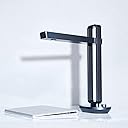
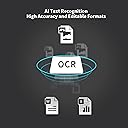
The CZUR Aura Pro is a cutting-edge A3 portable book scanner that combines AI-driven auto-flattening and fingerprint removal with ultra-fast 2-second page scans. Compatible with Mac and Windows, it supports OCR in over 180 languages and doubles as a multifunctional desk lamp featuring sound-controlled LED lighting. Designed for professionals who demand speed, precision, and style in document digitization.


| ASIN | B0B2WBG8P9 |
| Brand | CZUR |
| Brand Name | CZUR |
| Connectivity Technology | USB |
| Customer Reviews | 4.4 out of 5 stars 127 Reviews |
| Item Weight | 3 Kilograms |
| Light Source Type | LED |
| Manufacturer | china |
| Media Type | USB |
| Minimum System Requirements | macOS 10.13, Windows XP |
| Model Name | CZUR Aura Pro |
| Network Connectivity Technology | USB |
| Scanner Type | Document |
| Standard Sheet Capacity | 1 |
L**E
Great portable scanner to take to libraries/archives when doing family history research
I bought this scanner to help with my genealogy research. I often go to libraries/archives and use my phone to take pictures, so I wanted a scanner that was portable and would be allowed at those places (i.e. wouldn't damage old books/documents by pressing them onto a flatbed). I had been using my phone, but I don't like the disadvantages (it doesn't always take the best photo, and I hate the auto file naming, so you have to later figure out what you've got) so I was ready for something new. I'll review the scanner itself separately from the software. The Scanner (5 stars) The scanner does a high-quality job on scans of most documents and books. It's super easy to set up - just plug in the cords and go. It does need to be plugged into a wall outlet. I had no problem laying out the mat and having it stay flat which another reviewer complained about. I simply rolled the mat in the opposite direction, then laid it out on the table. The scanner is light-weight, so will be easy to transport to archives and libraries. The foot pedal is helpful for pressing "scan" when holding a book open. It has a felt-like bottom, so it doesn't slide on wooden floors. It's not a required piece of the scanner - you can use the scanner without the foot pedal. When scanning glossy pages (like those in page protectors) or photos, the side lights are a must. Without the sidelights, the top light reflects and you get a huge glare in the middle of the page. Using the sidelights mainly eliminates that glare. You do still need to check the positioning of the page, though, because a reflection of the lights themselves can be seen if you're not careful. The side lights were one of the reasons I picked this model. I like the way the camera arm folds into the center of two upright supports. It'll be perfect for looping my Kensington lock through and locking the scanner with my computer in case I need to step away from a library table for a few minutes. This was another reason I picked this model. The scanner software does a fair job of eliminating the cots from a page. However, just be aware that it doesn't work perfectly in all cases. One of the books I scanned has a flower border on many of its pages. The cots were automatically blurred out but the software obviously can't reconstruct what was under them. But it worked better than I expected on that book. The Software (4 stars) The installation was easy. If you provide your email address, you are provided a link to tutorials to help learn to use the software. For the most part though, the software is simple enough to use without needing them. The FamilySearch Library in Salt Lake City provides CZUR scanners, so if you've been there, the software will feel familiar. When scanning, you have the option to choose single pages, facing pages (like a book), manual selection (i.e. choose which portion of the page you want scanned), or combine sides (used for IDs to combine both images onto one sheet of paper). I haven't used the combine sides option, but the others all work great. The software does a fair job of OCR - although, it had trouble reproducing an 1990s-era computer printout which was justified into Word. The large spaces between words seemed to give it some trouble. The same printout, when exported as a Searchable PDF allows search as you would expect, so it was the layout that was the problem, not the OCR. I was able to load in pictures of a multi-page document that I had taken on my phone and the OCR did a fantastic job given the pages weren't overly straight, and some were skewed quite a bit. There are several options that you can perform on one or multiple images - rotate, crop, rename. You can also adjust the contrast, sharpness, and modify the color settings. You can load in a folder of images (even if not scanned by the scanner) and can use the software to manipulate them and export them. I've done this on some scans made on my phone. It's also nice because you can scan now, export later. Some software drawbacks (and why I only give it 4 stars) When scanning multiple books / documents, you can choose which images you want exported - either "all" or a selection. If I'm scanning large documents or a chapter of a book, I'd rather each get their own folder. The only way I've found to do that is to shut the software down and restart. The software uses its own style of UI (i.e. different look-and-feel from Windows / Mac). For pop-up windows, you need to be aware of which button is the default. For example, when prompted to overwrite a file, "cancel" is the default, but in other cases, "continue" is the default. In all cases the continue button is the one that appears "highlighted" (it's blue). So, hitting <return> may not be what you want, using the mouse is the best way to make sure you are selecting the correct button. There doesn't seem to be a way to rearrange images in the viewer. You can do so right before you export (you need to click the "Show Sort window" box). This is a bit clunky if you have a large book - the window is of a set size, and is hard to read page numbers in it. And the software doesn't remember the order, so if you want to produce both a pdf and a word document, you have to redo the sort. On the plus side, this is mainly just a limitation for documents scanned previously. If you are in the process of scanning a book (or have just finished), you should double-check each page. For pages that were not scanned well, or accidently skipped, you can use the "Rep" to replace the image or "Ins" to insert an image. This means that you really shouldn't need to rearrange the pages right before exporting.
ู **ู
ุงูุนูู
ุฑุงุฆุน
C**U
I think it is perfect for large book collections
As someone whose professional work is unrelated, I have developed a deep personal interest in studying the Okinawan language (Uchinaaguchi) because my ancestors are from there. Many of the most valuable materials for this field, especially those related to "Ryuka" poetry, are quite old. Some of these books were published 60 to 70 years ago and have never been reprinted. They are extremely difficult to find, even in Japan, and often very expensive. Over the years, I have managed to collect more than 100 of these rare books and had them shipped to the US with me. A large number of these books are quite extensive, often 500 pages or even exceeding 1000 pages. When studying an archaic language in poetic form, without abundant external resources, it is necessary to constantly reference and search through these materials. However because many of these books are so fragile, I sometimes hesitate to flip through the pages out of concern for damaging them. I have long been aware that book scanners exist, since I have used PDF books before, but I never looked into how they were created. I own a traditional Brother printer/scanner, and once I attempted to scan a 200 page book using it. The process took more than an hour and was physically exhausting. I had to flip each page, place it face down on the glass, and wait 7-8 seconds for each scan. With hardcover books, the weight and awkward positioning made the process even more inconvenient. After that experience, I could not imagine scanning the rest of my collection. That was when I came across CZUR. I decided to purchase the CZUR Aura Pro. It is not the most advanced model I believe, but since my primary goal is to digitize books with good clarity and OCR functionality, I believed it would be sufficient. A few days ago, the device arrived, and I immediately began scanning. For a 500 page book, the entire process took only about 20 minutes. The experience was effortless. The foot pedal is especially useful as it allows me to scan continuously without waiting for each page to process on the computer. Each scan takes only 1-2 seconds. Most of the time is actually spent adjusting the book position since the center line shifts depending on thickness and page turning. The OCR function is also quite good although it has some limitations. Many of the books I work with contain a mix of modern Japanese and Okinawan language, written in kanji, hiragana, and katakana. Because Okinawan differs semantically from Japanese and often includes uncommon or small kana, the OCR cannot always recognize everything accurately. This is understandable given how niche the language is, and I do not expect significant technological investment in this area. Even so, the results are still very useful. I still read the physical books for extended study because it is easier on my eyes, but when I need to quickly search for something, the scanned images are extremely convenient and save a great deal of time. Overall, I highly recommend this scanner. I have recommended it to other Okinawan language enthusiasts, and we are considering building a shared digital library of these rare materials.
A**.
Amazing for Normal Text, OK for images
Overall, this scanner is really good. If you are scanning text only books in b&w the results will be amazing. if you are scanning in color then expect mediocre, but still very acceptable, results. After scanning 22 books I believe this scanner is well worth the price. This book scanner excels in a few ways: 1. Ease of use. I found no difficulty in setting up the hardware and using the software. The user face is easy to learn and reliable. 2. Amazing scans for text only books. The scans of pages with only text (in b&w mode) are top tier. They flatten well and appear as if they where originally typed in word document or pdf. 3. OCR works very well. With the OCR feature I was able to create searchable and reliable pdfs. 4. Good Image capture. While the images captured on color mode look alot more like traditional scanned items, or just like pictures in general, this product does a good job of capturing and compiling them. Even so there are some drawbacks to this product: 1. The scanner sometimes has issues with lighting large pages. This is for glossy pages while using the attachable extra light. 2. In color mode, the scanner often cannot pick up large dark pictures. Or smaller dark colored pictures. These are turned into a cut off scan or a black silhouette. Sometimes, if you have a large single tone image (i find red to be the most problematic), the flattening and page capture features will fail. 3. OCR pdfs take a long time to compile. While the benefit is great, i would still like to see faster compile times. 4. In color mode, the scanner will pick up the included yellow page holders as they are thought to be part of an image.
C**G
Happy with the scanner
Could you put this review with five stars: I am still learning more about this product which I purchased a month ago, but so far I love it! I have an e-reader app on my iPad, and this is perfect for scanning physical books that are not available online into it. And using this, so far I have not had any issues with either the product or software. I didn't know exactly how it would work, but the page flattening AI is also extremely helpful.
Trustpilot
2 days ago
1 month ago