🎯 Master your workspace with ELECOM HUGE — precision, comfort, and control in one sleek package.
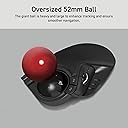
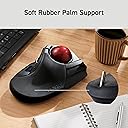
The ELECOM HUGE Trackball (M-HT1DRBK) is a wireless 2.4GHz USB input device featuring a large 52mm optical trackball for superior accuracy, 8 customizable buttons including DPI switching (500/1000/1500), and a soft palm rest designed for ergonomic comfort. Compatible with Windows and macOS, it offers smooth, precise cursor control with minimal hand movement, making it ideal for professionals seeking productivity and comfort without desk clutter.


| ASIN | B0735584RM |
| Batteries | 1 AAA batteries required. (included) |
| Best Sellers Rank | #11 in Computer Trackballs |
| Brand | ELECOM |
| Color | Black |
| Computer Memory Type | VRAM |
| Customer Reviews | 4.2 4.2 out of 5 stars (3,213) |
| Date First Available | July 16, 2017 |
| Hardware Platform | Laptop, PC |
| Is Discontinued By Manufacturer | No |
| Item Dimensions LxWxH | 2.25 x 4.52 x 7.16 inches |
| Item Weight | 9.1 ounces |
| Item model number | M-HT1DRBK |
| Manufacturer | ELECOM |
| Operating System | Windows 10, Windows 7, Windows RT8.1, Windows XP, macOS 10.12 Sierra |
| Power Source | Battery Powered |
| Product Dimensions | 2.25 x 4.52 x 7.16 inches |
| Series | M-HT1DRBK |
| Voltage | 1.5 Volts |
N**M
As an MS Trackball Explorer user since The Win98/PS2 days, this is an excellent "replacement"
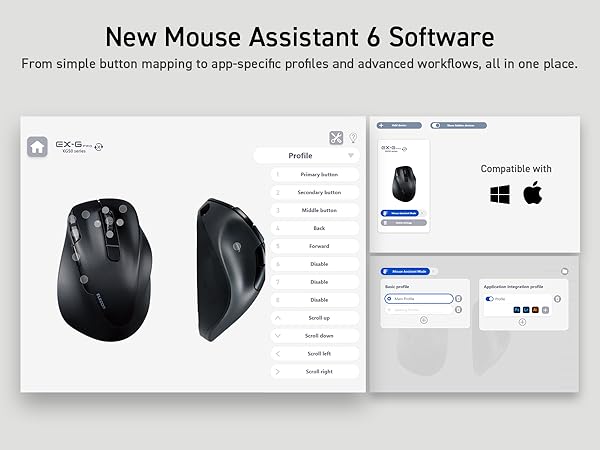
Quick Summary: MSTE users who don't have an MSTE - get this mouse as it's the closest "replacement" to date. Obviously, if one wants a mouse like the MSTE, then get an MSTE. But even a used MSTE costs a bit and you have to be careful of the cord. If one wants something Less Expensive that closely resembles the MSTE and is also cordless, then this is the best mouse on the scene since the MSTE itself. Update2: Trying to add some slightly better pictures and others that show the MS Trackball Explorer, Logitech Cordless Optical Trackmall, and the smaller Elecom "DEFT" trackball mouse. But some pictures are not loading to the site. Sorry. :( Update1: IMPORTANT NOTE: Waaay down in the comments (the oldest one at the "bottom" should be a link to the Elecom software download page and the English PDF manual. As this mouse is "very new" you *DO* need a more recent Elecom proprietary software to recognize this mouse if you wish to use it's three proprietary function buttons (F1-F3). Long Winded Review =============== This new Elecom Fingerball wireless mouse - the M-HT1DRBK - appears to have been released is June 2017 and has been available on Amazon since July 2017. In August I was about to order a second of the smaller Elecom M-DT2DRBKs when I stumbled over this new **larger** "HUGE" mouse and figured it was worth a try. The M-HT1DRBK just arrived and after giving it a ten minute test spin I just ordered two more. No clue if it will take "1-2 months" for the next batch to arrive, or if the price will drop from $85.99, but would say it is certainly worth the investment. FYI: It actually does say "HUGE" on the mouse itself. :) Comparisons to the MSTE (MS Trackball Explorer) ====================================== 1) It has a nice large "red ball" like a certain MSTE we all know and love. In fact, the Elecom ball is slightly BIGGER than the MS one. There were many reviews about the smaller Elecom mouse's "grey ball" having issues, and several people purchased a "blue" M570 ball to swap with the "grey" one. From my quick tryout of this new mouse with it's "red ball", would say that the quality looks to be significantly better than that of the smaller mouse's "grey" one. An excellent improvement. 2) This mouse is *MUCH LARGER* than the smaller "grey ball" M-DT2DRBK. Excellent for people with "larger" (aka normal sized) hands. 3) It is a bit wider than the MSTE, and Elecom moved one of the three proprietary "Function Buttons" to the right side of the ball. If you use their proprietary software, this would give you "two buttons to the right of the ball" just like the MSTE. 4) MOST IMPORTANT OF ALL. This mouse has a PALM REST. As this seems to be an alien concept to most mouse manufacturers I will state it again - this mouse actually has a place for the palm of one's hand to "rest" while using the mouse, so for the first time since the MSTE, there is actually a trackball that not only fit's one's hand, it is actually COMFORTABLE. Plus it doesn't have teeny tiny thumb-killing buttons like a certain L*git*ch Trackman. Wish I could show a decent side-view of the palm rest, but this can also be seen with via the pics on Elecom's web site. 5) ??? I would assume that being a wireless device, there may be an occasional "lag" in response times, but cannot say for certain. However there does appear to be a wired version of this mouse as well. It's part number (August 2017) is M-HT1URBK. Usage ===== Bulk of this review was written after only ten minutes of mouse use, so haven't had the time to give it an extended run, but observations so far are positive. "Weeks later" - Still great. Haven't tried the Elecom software yet myself (not using the F1-F3 buttons). - Seems to respond MUCH better than the smaller Elecom version (blue or grey ball). - Range seems to be about the same as the smaller one. About nine feet out it gets tricky and Line of Sight is critical. - The "left" button isn't as "tall" as the MSTE's, so my clumsy thumb is hitting the wheel, but this should be a minor issue. - ??? I read elsewhere that the "left" and "right" mouse buttons are "better quality" than the other buttons, that one should be able to tell the difference, that they should have made *all" the buttons "better quality", etc. Haven't noticed any difference between buttons yet. Too busy enjoying having a wireless mouse that actually fits the shape of my hand for a change. Customization - aka The Buttons ======================== So far as remapping buttons, "drivers", and support for various operating systems... Would assume this mouse works as a basic mouse in anything from XP up to Win10. You've got your Left, Right, Forward, Back and Wheel Buttons, plus the three Extra Proprietary Function Buttons F1-F3. Remapping the eight buttons and basic customization is where it gets interesting. Would assume one needs at least version 5.1.0 of Elecom's proprietary software to use/control all eight buttons. For now I am sticking with X-Mouse Button Control which allows configuration of everything except the three extra Function Buttons. Both programs allow for the use of multiple profiles for easy customization across different applications. Elecom's software (and English PDF manual) is available from their website. I will try adding possible links as a "comment" later as this review is too long as it is. Odd Future Issue (?) ================ Since the palm-rest is made of a "soft" material vs plastic, I wonder how it might hold up over time. Will it wear out? Time will tell.
M**B
Trackballs Are The Best Mouse Control Devices!!!
PRO It is a trackball which is far superior to any other mouse control on the market end of story. The large trackball makes it easy to do fine precision in graphic work. The over 7 buttons and wheel gives you the ability to do most anything any other mouse control device. I almost don't use the keyboard except when I need to create a document or email. I love having all that control in just 1 hand. Another benefit to a trackball is that it does not need much real estate. I have it on the arm of my chair and does not need anymore space cause it does not move around like a mouse. While a trackpad does not move I find it to be much slower, highly inaccurate like using finger paint, and totally horrible when trying to se fine work. Trackpads are an obscenity o technology that only a hammer can fix. Price was reasonable. CON This is a wireless which means every now and then I have to deal with batteries running low. I also have the USB version which never needs to recharge/replace any batteries which I prefer. I know some people don't mind dealing with batteries and prefer not to have wires all over the place. Wired/Wireless I'd still prefer this over any other device. I do not do gaming.
J**R
Nice and big, but a little off kilter for me.
I have been searching for a good trackball replacement and wanted to switch from a thumbball to a fingertip ball. The big ball square didn't work for me so I decided to try the Huge. Unfortunately it isn't working out for my thumb and hand. Quality: As for the build and feel of the trackball, it has a good weight and feel to it. It does not move around as I am using it. It looks very durable and would last a long time. I cannot comment on battery life as I have only had it for a short time, but the AA batteries seem to be doing very well even staying on the whole time and being ready when I reboot the computer. Connection: It only has the 2.4ghz dongle and no bluetooth, so the connection was a little spotty when plugged into my usb hub from my Mac Mini. I did get better connection when plugged into the main SSD hub on the bottom with a faster communication speed. Settings and speed: Once connected well, it is very responsive and the mid setting for me was perfect. Value: I think it is a good value for a large trackball. If your hand is very flexible in your thumb, it may work very well for you and the buttons and customization is great. Scrolling: That's where my main issue comes in. When Your hand is on the soft pad and resting near the ball, it is very comfortable, but to actuate the scroll and the button on the scroll, it puts my thumb in an awkward position and I have to reposition to get at it with more accuracy. Once I reposition, the heel of my hand falls off the pad and puts my hand at an angle for the upper buttons. Sadly I may have to return to a thumbball trackball. It did connect well with my Mac Mini and the forward and back buttons worked out of the box. With the Elecom software I was able to customize all the buttons to my liking. Al-in-all, this is another trackball I really wanted to like and be my main input device, but my weird hands will not let me. Hope this was helpful.
N**.
Amazing product, love the feel!
I love this, I have both wired and wireless versions, the former being used with my desktop computer and the latter my laptop. This has the feel of my old Microsoft TrackMan, and works very well. I'm a gamer and for me it's much easier to use than a mouse (and doesn't aggravate my carpal tunnel as much). It's simple to connect using the provided dongle that plugs into a standard USB port, and the dongle stores tightly in the bottom of the unit, so minimal chance of it coming loose and getting lost. It's plug and play, so for basic use you can use the Windows (I haven't tested it on a Mac) default mouse driver to adjust button assignments, but the manufacturer has it's own software that gives you far greater flexibility. If you have either version of this unit (wireless or wired), and travel with it, I highly recommend getting the Hermitshell case (search Amazon for M-HT1DRBK) to protect it, you won't regret it. I've been using the same case since 2018 when I bought my first of these trackballs, and it's still in fantastic shape. Note: If you have the wired version you just have to coil the cord on the bottom of the unit. The fit will be tight, but it does work. The only downside to this unit is that it will eat batteries if you have it on high performance mode. It would be much nicer if it had an internal rechargeable battery. I'm not taking anything off for that as it works perfectly well for me in the standard mode (I don't compete in e-sports any longer, so no need for high precision), and I get about 4 months out of a 1 set of batteries. It might be longer if I didn't forget to turn it off occasionally. This is a product I highly recommend, or I wouldn't have purchased 4 of them (2 of each over the years). This was a replacement for one that I'd had for a couple of years, but it got dropped and the buttons broke, otherwise I think it would still be going strong.
L**Y
Weird wireless behavior; good button placement.
I've been using a deft pro for 4 years; I'm left handed, but there are no good left-handed options for trackballs with more than 4 or 5 buttons, and I need 7 or 8 because I map things like windows keys, ctrl, shift, app button, copy and paste and include macros with authotkey that can be activated using the mouse and one hand. My Deft Pro left click started acting up and double-clicking, so I replaced it with this . 1st impressions - Pros It isn't as solid as the deft pro. It's fine, but just not as solid overall. The buttons are located well for me to use, I just have to retrain on position The hand position is ok, again I have to retrain since I've used the Deft Pro for so long Cons When waking up and intermittently (and I"ve only had this a day), the cursor seems to not respond well - it will lag for a few seconds or longer. I had it in low power mode, so I've switched to high power to see if changes. The mouse assistant 6 has some bugs: - When I map the windows key to the button above left click it will click and release and seem to click again because the WIndows Start menu opens/close/opens and strays open it isn't selectable from a drop down like in mouse assistant 5. This cause the program I've pulled up via macro to lose focus and requires an extra keypress. If I try to move a window using Windows snap fucntion (windows key + arrow) it doesn't work because the click - The Application key mapping doesn't work via Mouse Assistant 6 As a result I removed MA 6 and installed Mouse Assistant 5 which works perfectly. We'll see if the wireless problems continue. 3 stars for now, and may or may not improve.
J**E
Working good!
Update: I just purchased my 5th Huge wireless trackball; I have one in my home office, and use three at work in different locations, two that are just a few feet from each other. I love them and 4 of the 5 work exactly as expected. The 5th one was bought used and was likely returned for the same problem I encountered with it, but thought it might be a set up problem on my end...its not, its the trackball. Whenever I plug my laptop into the system that trackball is attached to, I have to unplug and replug the usb transceiver to get it to work. Once its working, I can go all day with it working fine, even if the laptop isn't used for a while and goes to sleep, but once I disconnect the laptop and reconnect it, i have to also disconnect the transceiver and reconnect it to get it to work again. Some other reviews mention that. The other four work perfectly, especially after a week or so of use to 'break them in' to where the ball responds without sticking when first trying to move it. They do break in. My oldest one is a couple of years old now, so I am also happy with durability. I previously bought the huge version and the smaller original deft, both wired. I bought the wireless one I am reviewing about a week ago, as "used--very good". I'm very happy with it; its a keeper, if set up correctly. First, make sure the transceiver is located in a position where there isn't interference of some kind. I originally placed it in the back of a caldigit T3 thunderbolt dock and it was working, but had the slow start and perhaps hard to be precise with like some people have talked about. For various reasons, I replaced that dock with the new Plugable thunderbolt dock, and noticed how poorly my logitech wireless keyboard was working when I placed its transceiver and this trackball transceiver to the back of the plugable dock. I moved both transcievers to a 4-port USB hub so they are still out of the way but not behind objects, and this trackball is now working excellently, with no hesitancy at all. the slow start and imprecision is completely gone--BTW, I have always had it set to the middle position in the back (for precision), and the middle position for speed. It doesn't emit the high pitch hum that came from the small wired deft, and I have found it comfortable to use for hours on end. I downloaded the software ( I am using mac OS Big Sur) and quickly programmed the keys. For me, I have both of the far right keys set to function as a right click just because its less confusing for me to do so. I have the smaller function keys programmed to cut and paste...but it will take me some time to get used to using them for that--I am coming most recently from a logitech trackman that is only 2 button, so I have to rewire my brain to use the extra functionality. Same with the track wheel. It works great, I just have to train myself to use it. I've been using trackballs for 20+ years, and can't get the hang of thumb-balls. If logitech had a more advanced finger driven trackball than the trackman, I probably would have gone that route, but the whole point of moving from the trackman was to go wireless. The new kensington is having mixed reviews and was too pricy to try sight unseen. I'm quite satisfied with how this telecom is working. My use over the past week has included some graphics work where precision is needed, not just documents, spreadsheets, and webpages. Thumbs up. Update July 2021--I must like these because I now have three of these (plus 2 wired ones) for different work stations I work from during a typical week.
E**.
Best gaming trackball I've found so far
I'm one of the small minority of gamers that plays PC games with a trackball, so this review will mostly be centered around my gaming experience with the Elecom M-HT series trackballs. For a long time, I played games with a Kensington Orbit trackball, simply because there weren't many alternatives out there that offered fingertip control and a decently weighted ball. Of course, the downside of that trackball is that it only has two buttons, and the scroll wheel is unfortunately positioned where it's way too easy to hit accidentally (resulting in embarrassing weapon switches in the middle of combat). However, at the time, it's what I had. When I ran across the Elecom M-DT (Deft) series, it was a breath of fresh air, a fingertip trackball that had a decent amount of buttons and a scroll wheel that was out of the way, but easily reachable. The downside of that trackball was the ball itself. It was too light, which caused some lost accuracy when sniping and didn't give me the satisfying flick response of the Kensington. Still, overall it was an improvement, and I went with it for another year or so. When I ran across the Elecom M-HT (Huge) series, it was a no-brainer. I spent about 15 minutes looking over specs and reviews, and hit the buy button. It arrived yesterday. I immediately hooked it up, updated the mouse assistant software from Elecom, and started playing games with it. The motion of the ball is incredibly smooth, and the weight of it stabilizes the position, allowing for more accurate sniping and reliable flick moves. If anything, the ball might be slightly too heavy, causing minute amounts of lag and oversteer with rapid "twitch" moves. However, it was pretty easy to get used to, and the size and weight of the ball allowed for some very stable aiming. The finger position for the buttons has been greatly improved since the M-DT series. The right click and Fn3 buttons fit right under my ring and pinky fingers, leaving the index and middle fingers to control the ball. I usually roll the ball with my index, middle and ring fingers, pulling my hand slightly out of the "proper" position, but the integrated palm rest allows my hand to easily return to the default position without having to think about it. The integrated palm rest is another big improvement over the M-DT series. When I used a separate palm rest, the trackball would often wander out of position, especially during flick moves, which would be distracting as I would have to "reset" the position of the trackball to keep my fingers in the ideal positions for the buttons. With the M-HT, the palm rest is integrated, so the trackball doesn't move unless I actually want it to. The software (downloadable from elecom.co.jp) is pretty basic. In assigning functions to buttons, most of the basic PC user stuff is available in dropdowns. For gaming, I make use of the "arbitrary key" option, which allows for up to 3 simultaneous keypresses for each button press (such as a key and up to 2 modifiers). I haven't made use of the gesture function, which allows for a button to have more than one function using gestures on the trackball, since I wouldn't want anything to get in the way of fluid movement while gaming. The software doesn't have support for macros or sequential keypress combinations, but I'm fairly certain that could be compensated for by adding other software such as a macro manager. I'd have to say that my least-used feature is the resolution switch. One of the benefits of a trackball in gaming is that its "resolution" is inherently variable. At a low resolution setting, accurate sniping is possible, while quick moves can still be managed with "flick and tap" maneuvers or by "walking" the ball with multiple fingers. I left the switch at the middle setting, and adjusted the mouse scaling to my liking. I figured I could switch it up or down on the fly for different scenarios, such as distance sniping and CQC, but honestly I haven't needed to switch it so far. Time will tell. Pros: Smooth and stable ball motion, integrated palm rest, good button positioning Cons(?): The ball might be slightly too large and/or heavy, but it's easy to get used to. Small hands might have a more difficult time finding a comfortable position, but my hands aren't exactly huge. Summary: This is the best gaming trackball I've found so far. Additional note: It seems the ball was initially lubricated when I took it out of the package. After washing the ball as a test, the tracking was a bit "stiff". Natural oils from your hand will eventually loosen it back up, and from what I've read this is actually the best lubricant because the parts are designed to deal with this sort of scenario. (Finger oil is inevitable, and in this case it actually helps.)
A**R
Excellent versatile trackball. Large ball, reminiscent of Microsoft Explorer.
The ergonomics of a trackball (or mouse, I suppose, if I ever used them) are very personal. What fits one person may not fit another. For a designer, one solution to this problem is to provide several alternative controls and a way for the user to specify what they do. This seems to be the philosophy behind the 8-button Huge model from Elecom. The Huge trackball is indeed fairly huge, and next to my Logitech M570 it seems unrealistically huge. But in fact it's almost exactly the same size as the Microsoft Explorer trackball I used for many years, until Microsoft inexplicably stopped making them. After a few others, most of which relied on clumsy rolling bars and ball-bearing races, which were rough and unresponsive, the optical trackballs arrived, notably the M570. Reluctantly, I decided perhaps my thumb could be as nimble as my index and ring fingers, and to my surprise it worked fine. I settled on that device for several years, but one problem kept recurring -- the microswitches in Logitech products are beyond cheap. They're very short-lived, at least for someone who makes their living on the computer. I've bought 6 of these compact, effective trackballs, and that's just not acceptable quality. Logitech also makes keyboards, which again, I quite like -- except their keycaps are cheap, with painted-on labeling that wears off in a year or so (the home keys, for those who touch type). A nuisance, but blank keycaps don't make the keyboard useless. Double-clicking button switches do. It was time to try another brand, and I bought an Elecom clone of the M570, and it's held up nicely in my studio, which isn't the friendliest place for precision devices. With the good performance of that trackball, I decided to see if my muscle-memory from the finger-style trackball was still functional, so I got the Huge model for my office. To my great relief, I found that switching back from thumb to forefinger control was effortless, and once the big red globe was sitting next to my K780 keyboard, I found myself unconsciously reaching for the ball with my fingers instead of my thumb. Some will disagree, but although the thumb has a bit more freedom of movement, I believe the forefingers have significantly more refinement of sensitivity and movement, and along with the much larger ball that gives me a very useful level of control. I may not convert to finger models for the four other computers I use regularly, but I suspect I can switch back and forth between thumb and forefinger models without a problem -- most of the others are used to control CNC, laser, MIDI, etc., so the pointing device isn't as critical as it is for Adobe apps and extensive writing. The specific features of the Huge are well documented elsewhere -- the buttons and wheel all work fine. I can't yet say whether the switches will last longer than the M570, but it's hard to imagine they wouldn't! Overall, I give the button action and placement a 90% score. The areas for improvement are few, but worth considering: The wheel is great in its own right, but its placement slightly obstructs the default LEFT button, and I would address this by extending the LEFT button outward a little (I might try sticking a layer of plastic on it myself). More significantly, the wheel is also a button, and in its near horizontal placement it's hard for the thumb to press it all the way to a click without bracing the fingers on the opposite side, to keep the whole device from sliding to the right. This is a problem that could only be fixed by using a much lighter spring on the wheel-switch itself. There is a similar "ease of activation" issue with the slider at the bottom left. This is used to select Low, Medium, or High wheel sensitivity, and although it works as expected, actually sliding it is much too difficult for interactive use. I can "deliberately" put it any position, but it's impossible to just "casually" slide it back and forth while actually using the pointer. That means if you need to change resolution for a moment or two and then return to normal, it's just not doable. Unfortunate, but not a big deal for my use. It would have been nice, though, and it seems odd to provide that capability and not make it effortless to slip into the needed gear. Finally, my biggest disappointment. With the M570, my wrist sits squarely on my desk, so it gets uncomfortable pretty quickly, and I resort to various pads, thick and thin, to avoid stressing that bundle of tendons, nerves, and blood vessels exposed on the bottom of the wrist. The Huge, on the other hand (pun intended), has a large wrist support area with a squashy pad on top -- perfect! Except on my unit the pad is only slightly softer than the tread on an automobile tire. It's definitely a pad, softer than wood, but not by much. If I push with my finger on a thick section (about half an inch thick in places), I can with some force get it to collapse about 1/3 of its thickness. But my wrist is a large area and the weight of my hand & forearm is far too little to produce any compression at all. It might as well be solid plastic (or tempered steel) with a thin cloth glued to it. It's only technically a pad. Realistically, it's not. I do wonder if Elecom might have replacements for the pad, perhaps with some compliance or softness. There's no cushioning value in the present one, and I'm even considering peeling it off (if possible) and replacing it with something that's actually soft. I don't know if Elecom reads these reviews, but they would have no way to contact me anyway, so I'll have to try contacting them elsewhere. My conclusion is that I like the Huge very much, I'm very satisfied with the ball action, there are buttons aplenty for my clicking needs, and with luck it will prove much, much more long-lived than the nice (but flimsy) M570 it replaced. I do recommend it highly, with the small caveats mentioned.
Trustpilot
2 months ago
1 week ago