We remain fully operational. Our teams are working around the clock to ensure your deliveries continue safely.
DOWNLOAD THE APP


Customer Services
Copyright © 2025 Desertcart Holdings Limited
DOWNLOAD THE APP


🚀 Elevate Your Mac Experience!
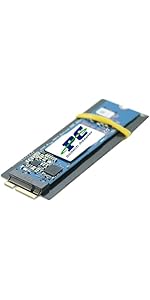
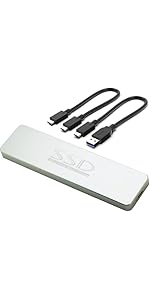
The Sintech NGFF M.2 nVME SSD Adapter Card is designed for upgrading 2013-2015 Mac models, providing compatibility with a wide range of NVMe SSDs. With a lightweight design and easy installation process, this adapter card ensures a seamless transition to faster storage solutions, backed by a 6-month warranty.






| ASIN | B01CWWAENG |
| Best Sellers Rank | 20,547 in Computers & Accessories ( See Top 100 in Computers & Accessories ) 25 in Computer Memory Card Adapters |
| Brand | Sintech |
| Colour | Black |
| Customer Reviews | 4.4 4.4 out of 5 stars (2,794) |
| Date First Available | 13 Mar. 2016 |
| Guaranteed software updates until | unknown |
| Item Weight | 0.01 Kilograms |
| Item model number | ST-NGFF2013 |
| Package Dimensions L x W x H | 10.5 x 5.2 x 0.7 centimetres |
| Package Weight | 0.02 Kilograms |
| Part number | ST-NGFF2013 |
| Size | Long |
| Style | ST-NGFF2013C |
| Warranty description | 6 Months |
S**H
Allows for a huge upgrade at small cost
It came with clear instructions and was easy to install in my late 2015 Mb-Pro. I purchased a Samsung 1TB NVME 980 to install, I know it's a bit slower that the 970 Evo Plus but you'll be hitting the bandwidth limit of the MacBook way before you hit the limit of these SSD, it uses less power so the battery will last longer, it has better reliability and it was £10 cheaper. I also chose Samsung because I've had bad experiences with other manufactures of SSDs in the past and the original Mac drive was Samsung. I don't think the adapter actually has any electronics in it? I looks like it's just remapping the pins to the correct locations so drive compatibility will probably be the same across all adapters... but I could be wrong. If you click the SSD into the adapter properly and then into the MacBook with a bit of confidence, everything fits perfectly. I used the supplied Sintech screw to hold them in place, then I put the OEM screw with the OEM SSD and packed them into the box for safe keeping. I went down the route of making a Monterey bootable USB following Apples instructions, it was simple enough to do and worth doing before your new drive arrives. If your OEM SSD has actually died, hopefully you have a time machine backup or you'll have make the USB with another Mac or ask a friend. You will need a pentalobe screwdriver bit, I think it was P5. This will be included in an iFixit kit or similar, I think the SSD screw was a Torx? It looked like a P6 but neither of the pentalobe bits fitted so I used a T4. I hope Monterey will see me through for a few more years before Adobe drops support like they did for Catalina, this laptop still has a good spec with great performance so it would be a real shame if I was forced to move on.
S**A
Works brilliantly, the set up can vary (see instructions in main body of review)
Works brilliantly, though may take a few minutes to get working so it requires a small amount of patience. My write speed has tripled, my read speed had tripled, the laptop is noticeably more faster. If you are having problems installing please see the instructions I have listed below, there are a couple of extra steps required My MacBook Pro is a 13" mid-2014 retina, A1502 model. The NVMe SSD I have installed is a Samsung 970 Evo NVMe M.2 SSD - capacity of the drive is 1TB. Steps to install: 1) Create Time Machine back up of MacBook. For those that don't know Time Machine is free, it is made by Apple and comes pre-installed on your MacBook. 2) Install the drive with the adapter into the MacBook 3) Turn on MacBook, immediately after turning on press and hold 'Command/cmd' and the 'R' Key, this will enter the Apple Restore Partition 4) Enter disk utility to see if the drive is present, if it is present then click ERASE. Name the drive whatever you wish. Set the format as 'Mac OS Extended (Journaled) and the Scheme as GUID Partition Map. 5) Then exit out of Disk Utility (press the red button in the top left of the Window), Plug in your hard drive that you are using as your Time Machine and click the Restore Using Time Machine option. Install it to the Drive you named in Step 4. sit back and let it complete. Additional steps: 4a) for me the Disk Utility would not show the Drive, so what I had to do was shut down the MacBook. 4b) When the device has fully shut down press the Power button again, when you press the power button hold down the following Keys: 'Command/cmd' and 'Option (sometimes this is shared with the alt key as it is with mine)' and 'P' and 'R' 4c) Hold the 4 keys, you will here the MacBook chime, keep it held until it Chimes again and then release 4d) After then wait for the MacBook to boot up into the Recovery Partition and look in Disk Utility, you should see the drive in Disk Utility now. The laptop will reboot a few times before booting into the Recovery environment 4e) continue with steps 4 and 5as they are listed above the additional steps.
M**D
When prepared, works exactly as intended!
This review will be scored based on the product, but will include a note about how it's used. Overall the physical installation process was relatively seamless - upon installation, I believed it was too long and so took a microfile to the screw section in order to fit it, until I put the SSD in and the installation force of THAT pushed the Sintech adaptor even further into the socket than I was willing to go with the bendy-ness of the adaptor. This meant all my filing was pointless.....with a bit of effort and a lot of my Other Half's trust in me around her Macbook, I could've fitted it without mods and it would have worked. I used a Crucial P1, one of the SSDs on the list. Upon installation the SSD wasn't detected, even when using diskutil on Terminal. THIS IS HOW TO INSTALL: 1) USE A USB - Internet Recovery didn't like what I was doing one single bit 2) USE OFFICIAL APPLE - I tried using a .dmg from another website, and there was no luck at all. BEFORE installing, use your old install to update to the latest version, do a Time Machine backup, and then create USB installation media following Apples instructions! I spent hours troubleshooting, so hopefully this solves anyones issues before they have to re-dismantle their laptop. This was on a mid-2015 Macbook Pro 13". The screws you'll need are all 5-point star heads, I in particular used 1.2 and 1.5 and they seemed to do the job. Not official Apple, but worked nonetheless. KEEP THE SCREWS SEPARATE AND ORDERED - it's Apple after all, so they have specific holes to go back into!
S**K
Ordered two a while ago.. and Amazon didn't ship both. Vendor responded quickly to my complaint and shipped out missing adapter quickly. I couldn't ask for better service. I'm also pretty sure they've added more guidance to the product listing (this Amazon listing) about supported hardware and troubleshooting since my original purchase, so nice to see them continuing to add to their support documentation. I'll waste some of my plentiful shelter-at-home time with installation tips and my detailed experience with these adapters below.. but I'll wrap up the short-version of my review by saying... Bought two already and I'm ordering more to upgrade additional 'retired' iMacs that have come into my office (University IT Support). There's plenty of usefulness in a 2015 17" iMac after it's got a new NVMe drive in it. Long Version... Installation is not trivial, but that's because of how iMacs are designed and assembled. Read a tear-down webpage, take your time and don't force the screen. They're not that hard to crack (I've done it.. and I'm a professional ;-P ). I find, in addition to a plastic cards (old gift card or similar works well).. I like to use an Exacto Knife so carefully slice through the adhesive foam gasket (slowly slice down into gasket in increasingly deep passes, don't jam blade between glass and case). I also like using increasingly thick guitar picks as shims as I work around from top->down sides.. and look for pull-away tabs at outside of bottom gasket section on newer iMacs. Even thought you have to completely gut the iMac's insides to get to the SSD interface on the back of the board, the actual installation of this adapter is easy so I gave it 5-stars. Oh yea, if you don't want to buy a replacement gasket kit.. don't use double-sided tape instead. It's not thick enough to make contact with screen and case. just wrap some tape around outside edge of glass and case. As for how will it works... Pick a supported SSD, avoid the Samsung drives that they warn against using.. and it just works. You can't ask for more. My own results are mixed so far. .but I don't blame Sintech.. and I believe they recently posted a fix for the one issue I'm still having (I'll try today). - 2017 27" iMac: Even though this isn't listed as a supported Model, the adapter works fine in my 2017 iMac. Before upgrade, it was unstable and I noticed some serious errors with the Fusion Drive B-Tree structure, so I pulled both the disk & Apple SSD and upgraded to a FireCuda NVMe drive. Instability persisted but cleared up after I also pulled a pair of 3rd party SO-DIMMs. I suspect both Fusion Drive issues (which Crash Logs pointed to) and a bad pair of SODIMMs both contributed to original problems. iMac runs better than new now (though still short some RAM). - 2015 27" iMac: Again, I replaced a fusion set that was causing problems in this iMac. This iMac also seemed to be having problems with it's Fusion Drive setup prior to upgrading. Installation and clean-install on new drive went flawlessly and iMac worked great.. except it then started crashing when going to sleep. I've since seen new info here on a possible fix so I'll give that a try.. though it'll take me a while to confirm the issue is gone since it was an intermittent problem. No indication that there's a problem with the adapter/drive while the computer is in use though. One thing to note if you plan to replace a Fusion drive set with this... If you use CarbonCopy Cloner (or presumably Disk Utility too) to clone your Fusion drive Volume to a disk image or to your new NVMe drive, it clones the 2-drive Fusion formatting too. You'll end up with two partitions on your single NVMe.. with one staging new & frequently-used data.. and older data getting migrated to the 2nd partition. It'll look like one Drive from the Finder, but I have suspicions that Apple's data staging code is introducing corruption into Fusion Drive's directory B-Tree so best to not introduce this un-needed complexity. Better options... 1. If you've got.an up-to-date TimeMachine backup.. do a clean Mac OS install onto new drive and a data migration from your TimeMachine backup.. or... 2. Get an external USB NVMe adapter or NVMe USB case.. Do an internet recovery (boot w/ Command-R pressed) and install a clean version of MacOS onto the new NVMe drive (usb-connected).. Boot off the NVMe drive and update to latest OS if you need to (I've seen Internet recovery install latest Mac OS release on some Macs, and older versions on others).. Now, do a Data Migration from the Fusion Drive set to the new NVMe. When it's all setup.. then pull the iMac apart and swap the drives. Good luck.. Steve.
P**H
Worked as expected. Used Crucial P3 Plus 1TB PCIe 4.0 3D NAND NVMe M.2 SSD , which is not listed in compatible SSDs List but worked flawlessly. Read and write speed increased from earlier (doubled) but not reached maximum that the SSD offers (which is obvious).
T**E
Bought this and a Crucial P1 500gb hdd as Amazon indicated they were often bought together, and Crucial P1 was listed on one of the photos. However after spending half a day trying to various ideas to get it to work with the adapter I gave up. Next day bought a Samsung EVO 970 500gb hdd from a local store, as this was one used in a YouTube video demonstrating the setup of the adapter, and it worked immediately.
J**S
Aufrüsten meines MacBook Air 2017 hat super funktioniert. Das der Adapter zu dick aufträgt und die Unterseite sich nicht mehr verschließen lässt kann ich nicht bestätigen. Bei mir hat alles gepasst. Ebenso die Passgenauigkeit der Schraubenbohrung. Vielleicht wurde hier aufgrund der schlechteren Rezessionen nachgebessert. Verwendet wurde ein aktueller Crucial P3 1TB MacBook Air 2017 (MacOS Monterey) Boot Stick mit MacOS Mojave, erstellt mit Windows. Festplatte musste nach dem Bootvorgang über das Festplattendienstprogramm lediglich formatiert werden und war dann auch verwendbar für die Installation. Alles machbar für jemanden der sich mit so etwas eigentlich nicht auskennt.
A**R
this product is great for upgrading Mac. it definitely and Affordable option to upgrade my Mac.
Trustpilot
3 weeks ago
2 months ago