
DOWNLOAD THE APP


Customer Services
Copyright © 2025 Desertcart Holdings Limited
DOWNLOAD THE APP

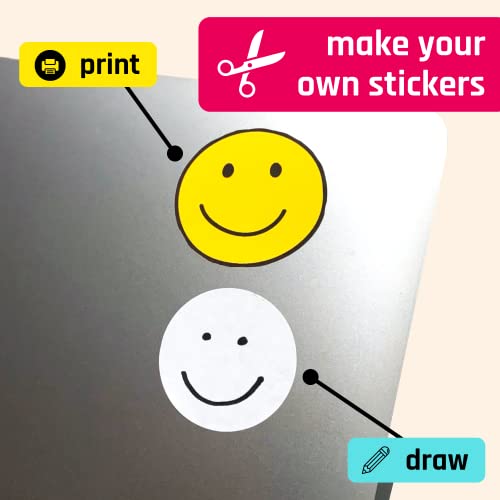
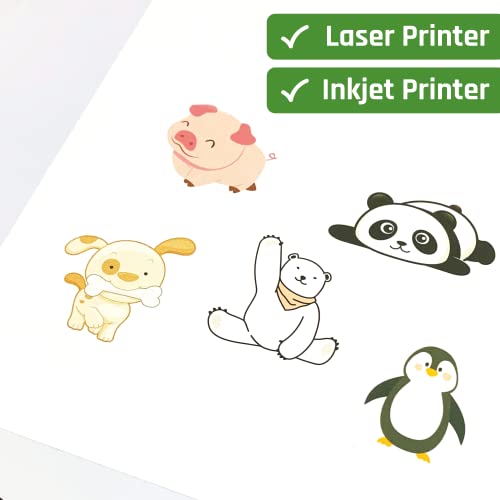

📋 Stick it, print it, own it — labels that mean business!
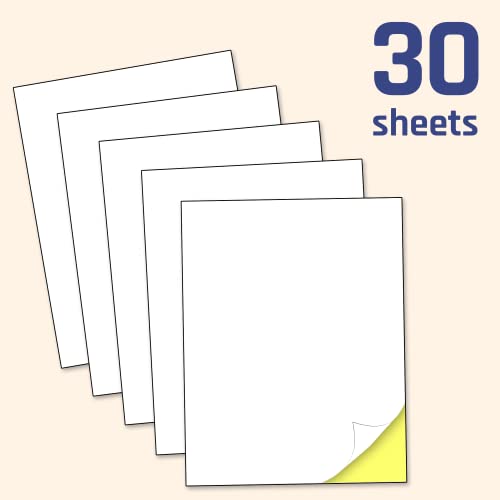
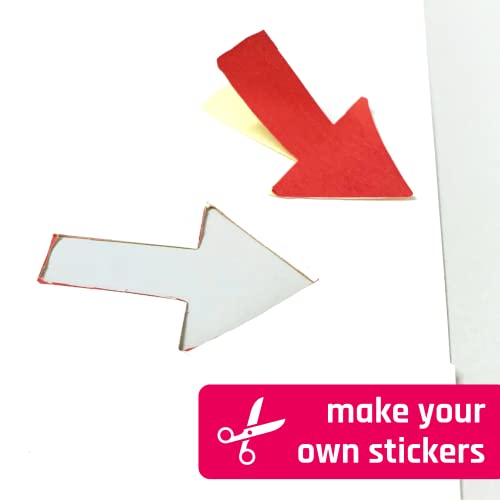
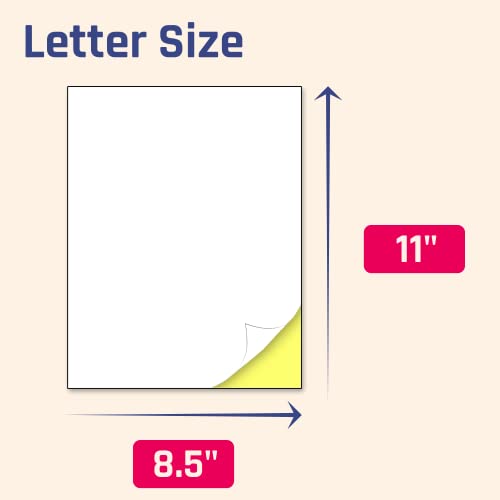
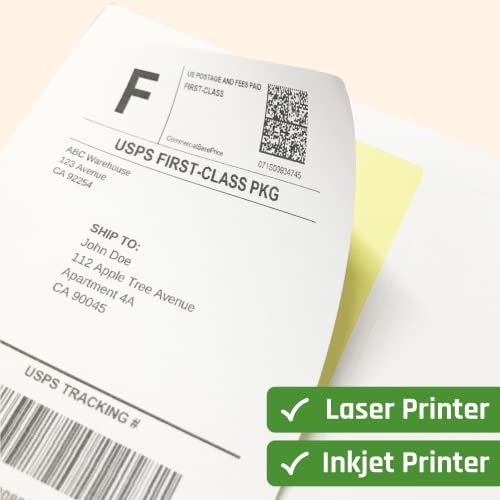
TownStix Matte White Sticker Labels come in a pack of 30 letter-sized sheets (8.5" x 11") designed for seamless laser and inkjet printing. Featuring a smooth matte finish, these self-adhesive labels prevent ink smudges and allow easy writing with pens or markers. Perfect for professional labeling, crafting, and organizing, they stick reliably to various flat surfaces, making them a versatile essential for any modern workspace.


| ASIN | B07T1HRYL5 |
| Best Sellers Rank | #214,651 in Office Products ( See Top 100 in Office Products ) #13,419 in Labels & Stickers |
| Brand | TownStix |
| Colour | White |
| Country of Origin | USA |
| Customer Reviews | 4.5 4.5 out of 5 stars (27,731) |
| Date First Available | 10 August 2019 |
| Ink Colour | White |
| Item Dimensions LxWxH | 27.9 x 21.6 Centimeters |
| Item Weight | 300 g |
| Line Size | Standard |
| Manufacturer | TownStix |
| Manufacturer Part Number | US |
| Material | Paper |
| Model Number | US |
| Net Quantity | 30.0 Count |
| Paper Finish | Matte |
| Paper Weight | 30 |
| Shape | Rectangular |
| Sheet Size | 8.5 x 11 inches |
| Size | 8.5" x 11" | 30 Sheets |
T**S
These printable sticker sheets are awesome! 🤩 I used them with my inkjet printer (Epson EcoTank 4850) and they came out super clear and vibrant. The paper sticks well but isn’t too hard to peel off if you need to reposition 👌🏼 perfect for planners, labels, or just decorating random stuff 😄 Cutting them was easy too (used scissors and also a Cricut for some designs). No smudging or weird texture. Honestly, they make DIY projects so much more fun. If you’re into crafting or journaling, these are totally worth it. I’m already planning my next batch! 💸
M**S
Just what I wanted them to do. Use them for old boxes that I have re-packed with other stuff. Used a Color Laser printer with fantastic results. Stick very well to the old boxes. Printing may smear if using an inkjet printer and affixing the labels right away. Best to let the ink dry first and you will have no problems. Used the Avery 5163 Shipping label Template which can be downloaded for free at Avery.com
M**T
I have been printing on various sizes and shapes of labels since I had my first office job. Although my primary occupation is technical consulting, I own an ecommerce website and mostly use labels for its products and their packaging. These TownStix labels are the best quality I have ever purchased, and I found the colored backing -- a unique feature I have never seen before -- to be incredibly helpful for testing purposes (more on that below). To avoid the same level of frustration as myself and other reviewers experienced, I do NOT recommend using Canva or Avery.com to print your TownStix labels, despite their recommendations. Every printer and software can have slight differences in finished label alignment, and my guess (and ONLY a guess) is that their templates might not have been tested against multiple software types, so my tips below are based on how I made things work. 1) LABEL SOFTWARE - I was a longtime WordPerfect user, then gravitated to Microsoft Office, but when they started charging for monthly service and no longer offered their software on CD or by download that you pay for only once, I searched for an alternative. I stumbled upon OpenOffice, an open source FREE software like LibreOffice, also free, both of which are clones of Microsoft Office for Word and Excel. For TownStix labels, I used OpenOffice's "OpenOffice Writer", a clone of MS Word, but I believe my suggestions will work regardless of the software you use as long as you understand your computer's settings. 2) TEMPLATES - I am a perfectionist about label formatting, and like others, I have experienced mis-aligned text on labels, either too far to the left, too far to the right, or not centered (too high up or overlapping the bottom margin). Every time that happened, it resulted in wasting many pages of label sheets (and money) to try to get the text properly aligned, not to mention, I wasted a lot of time. To have the best experience with TownStix labels (I purchased 1" and 1.5" round), I recommend going to labelsbythesheet.com and downloading their FREE label template for the size of labels you purchase. I have been using their templates now for a few years and only needed to make ONE tiny margin adjustment, explained below. You can use their search feature to search for round, square, etc., and they will show all sizes available for the shape you desire. Their templates come in PDF or Word (.doc), and you will need to save the template to your hard drive before opening it in your software (in my case, it opened automatically to it). The reason I opt for templates on labelsbythesheet.com is because they claim to test their templates against different software types, which is an important point. When you open the downloaded template from your hard drive, it will look like a plain (BLANK) 8-1/2" x 11" sheet of paper with an image overlay that tells you how to use it. That image overlay confused me the first time. To see your labels, do two things: (a) click anywhere outside the border of the OVERLAY IMAGE, and you will see your label sheet behind it, e.g., with cicles, squares, etc.; and (b) to delete the overlay image, click on it once and then click on the delete key (it will disappear). 3) FORMATTING - The first thing to do is format your text or image so it properly aligns in the label template. This requires checking your page and printer settings. Every printer does not align perfectly with every label, so if your margins and alignment are not correct, your printed labels will mis-aligned vertically or horizontally. Note: Every individual label on the page requires the same settings, so after it is correct for the first label, whether you are using text or an image, simply copy it too all other "cells" one at a time. In OpenOffice, I use OpenWriter and go to Format >> Page (you will have something similar in your settings). a) PIXELS PER INCH: There are 300 pixels per inch, so on a 1.5" inch label, that means an image can be only a maximum of 450 pixels tall or wide. Anything larger will overlap the template edges (and your printed labels). You can resize your image by touching the corner with your mouse and making it smaller. b) ALIGNING AN IMAGE: Be sure it is centered (Format >> Page >> Alignment >> Centered). c) IMAGE POSITION: Horizontal - Centered; Vertical - Centered d) MARGINS: For 1.5" round labels, the labelsbythesheet template was defaulted to .38" on all sides, but for my Canon inkjet printer and Pantum laser printer, both were "a hair" off. After changing the left margin of the PAGE to .40" -- which amounted to a tiny adjustment -- all labels on the sheet were perfectly centered and aligned. e) VERIFYING POSITIONING: You might not want to do this to end up losing a label sheet, but when I realized that there was a yellow backing sheet on the white label sheet by TownStix, I pulled off all the labels on the sheet and used it behind a light (my desk lamp) to see how the printed labels were positioned. Doing that was how I realized that I needed to change the left margin to .40" (the yellow backing was a thoughtful and helpful addition, and I wish every label manufacturer would do that). I will be keeping that sheet for future testing, and you might want to do the same. f) TEXT ALIGNMENT: If your text overlaps the margins, simply reduce the size of the text, or change the alignment from left-justified to centered, or vice versa. g) SAVING YOUR FINISHED LABELS (IMPORTANT): If you are satisfied with your labels after printing them out, save the file with a NEW NAME so you do not disturb your template. I name my finished label files by appending "READY-TO-PRINT" to the file name. My only complaint about TownStix is their limited offering in terms of label size and shape. I would like to see oval and square in white or clear (brown craft labels look cheap to me), and if they eventually do, I will be a permanent customer.
W**O
product was as expected and fits its intended purpose.
K**N
Does not line up with any free online template that I could find.
Trustpilot
2 weeks ago
4 days ago